🐳 Docker Beginner to Advanced – Single Markdown
🐳 Docker Beginner to Advanced – Single Markdown
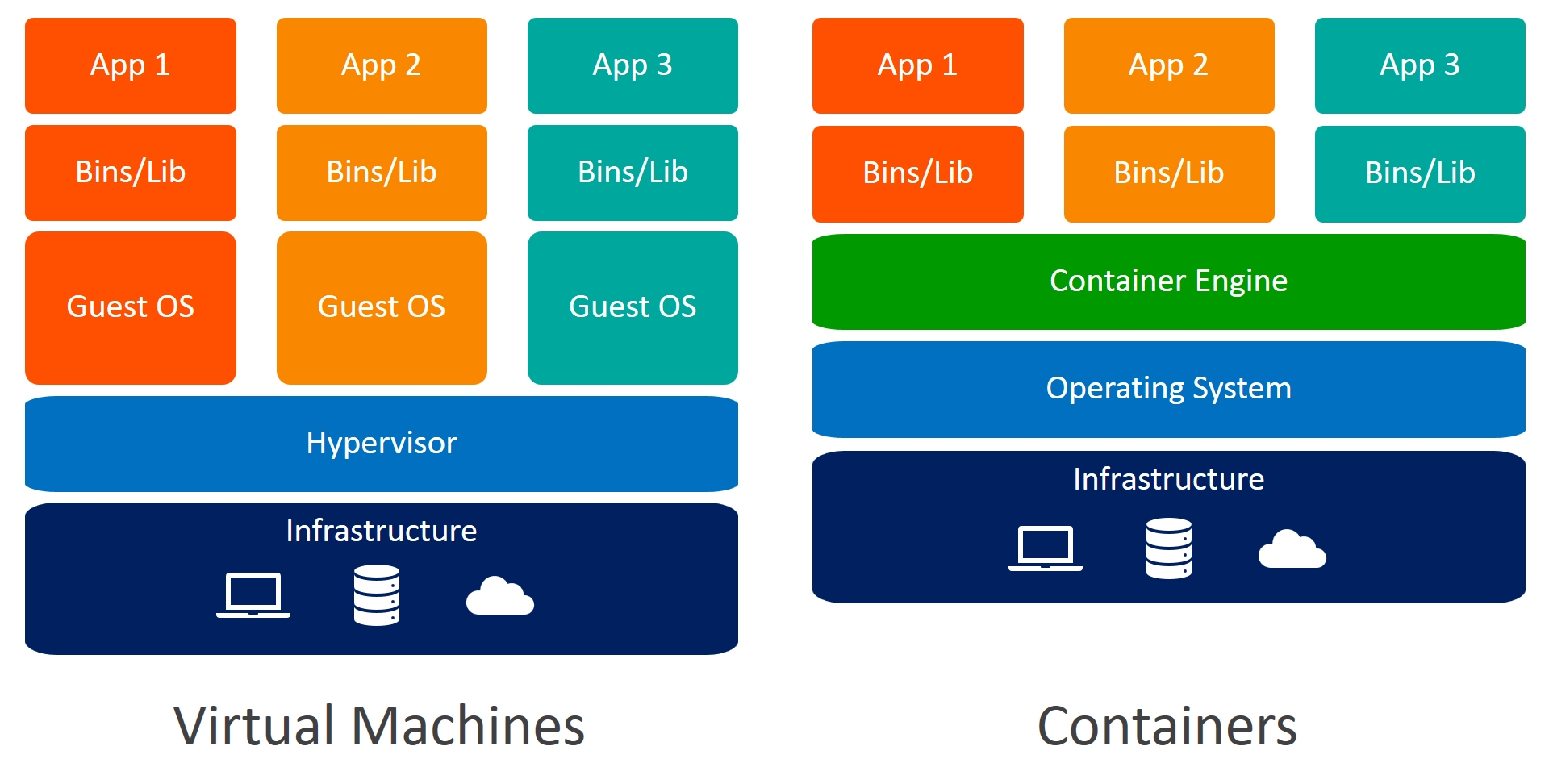
| Feature | VMs | Containers |
|---|---|---|
| Virtualizes | Hardware | OS / Runtime |
| OS Requirement | Own OS per VM | Shared host OS |
| Size | Heavy (GBs) | Light (MBs) |
| Boot Time | Minutes | Seconds |
| Performance | Moderate | Near-native |
| Isolation | Strong | Moderate–Strong |
| Portability | Good | Excellent |
| Use Case | Monolithic / Legacy | Microservices / Cloud |
Real-World Examples
VMs Used In:
- AWS EC2, Azure VM
- Running Windows + Linux on same server
- Banking and enterprise systems
Containers Used In:
- Docker
- Kubernetes
- Microservices like Netflix, Uber, Spotify
- CI/CD pipelines
What Is Docker?
Docker is a platform that lets you build, run, and manage applications in lightweight containers.
Containers include everything needed to run apps — code, libraries, runtime, and configs.
1. Install Docker
Check Docker version
docker --versionIf not installed → download from Link
Run a container in background
docker run -d -p 80:80 docker/getting-startedMeaning:
-d→ detached mode-p 80:80→ hostPort:containerPortdocker/getting-started→ image name
Run container in foreground interactive
docker run -it -p 8001:8080 --name my-nginx nginxMeaning:
-it→ interactive shell--name my-nginx→ give name, if not random name is givennginx→ image name
2. Basic Docker Commands
| Command | Use |
|---|---|
docker images |
List images |
docker rm <name/id> |
Remove container |
docker logs <name/id> |
View logs |
docker exec -it <name/id> bash |
Enter container shell |
3. Containers
- Start a container
docker start <name/id>- Stop a container
docker stop <name/id>- Restart a container
docker restart <name/id>- Stop a container
docker stop <name/id>- Kill a container
docker kill <name/id>- Clean All
Cleans up dangling images, containers, volumes, and networks (ie, not associated with a container)
docker system pruneAdditionally, remove any stopped containers and all unused images (not just dangling images)
docker system prune -a3. Information
| Example | Description |
|---|---|
docker ps |
List running containers |
docker ps -a |
List all containers |
| `docker logs <name/id> | Container Logs |
docker inspect <name/id> |
Inspecting Containers |
docker events <name/id> |
Containers Events |
docker port <name/id> |
Public Ports |
docker top <name/id> |
Running Processes |
docker stats <name/id> |
Container Resource Usage |
docker diff <name/id> |
Lists the changes made to a container. |
4. Update
- Create Container (without running)
docker create --name my_redis --expose 6379 redis- Rename a existing container
docker rename oldName newName- Update Resources
docker update --cpu-shares 512 -m 300M <name/id>5. Manipulating
Example |
Description |
|---|---|
docker images |
Listing images |
docker rmi nginx |
Removing an image |
docker load < ubuntu.tar.gz |
Loading a tarred repository |
docker load --input ubuntu.tar |
Loading a tarred repository |
docker save busybox > ubuntu.tar |
Save an image to a tar archive |
docker history |
Showing the history of an image |
docker commit nginx |
Save a container as an image. |
docker tag nginx eon01/nginx |
Tagging an image |
docker push eon01/nginx |
Pushing an image |
6. Docker HUB
docker login
docker push myrepo/nginx- Commit Container → Image
docker commit containerName newImageName- docker search
docker search nginx- logout
docker logout7. Build Your Own Image (Dockerfile)
docker build -t myapp .8. Docker Networking
List Networks
docker network lsInspect Network
docker network inspect MyNetworkCreate Network
docker network create MyNetworkRun Container With Network
docker run -d --network MyNetwork nginxConnect Running Container
docker network connect MyNetwork my-nginxDisconnect
docker network disconnect MyNetwork my-nginxRemove Network
docker network rm MyNetwork9.Volumes (Persistent Storage)
- Create Volume
docker volume create myVolume- Attach Volume
docker run -d -v myVolume:/data nginx- List Volumes
docker volume ls- Remove Unused
docker volume prune9.Adding DNS to Docker Containers
You can control how containers resolve domain names using Docker DNS options.
Add DNS While Running a Container
Use the --dns flag with docker run
docker run -it --name myapp --dns 8.8.8.8 --dns 1.1.1.1 ubuntu bashMeaning:
8.8.8.8→ Google DNS1.1.1.1→ Cloudflare DNS- Multiple DNS servers allowed (Docker tries in order)
🔎 Check DNS Inside Container
cat /etc/resolv.confYou will see entries like:
nameserver 8.8.8.8
nameserver 1.1.1.1